

Basic Insertion Method
To add images or videos in Framer, open "Insert" from the left toolbar and drag the image component from the "Media" section onto the canvas.
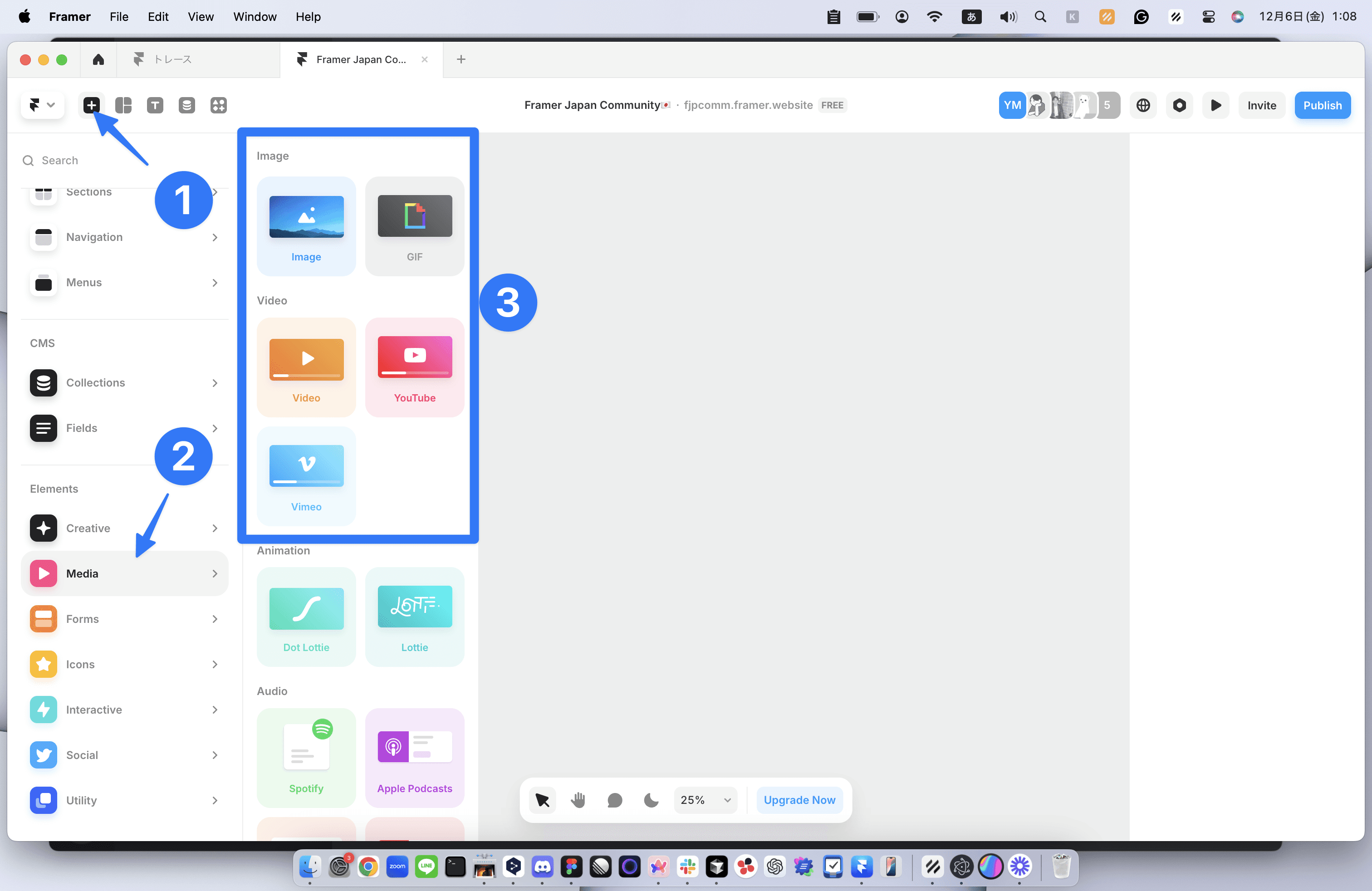
You can also add it using shortcuts.
Insert Image:
Shift + IInsert Video:
Shift + V
Supported Formats and Media
Images support JPEG, PNG, WebP, GIF, and TIFF formats.
Videos support local file uploads such as mp4 and webm, as well as embedding from YouTube and Vimeo URLs. Various settings like autoplay and loop playback can be configured in the right panel.
Automatic Image Optimization and Key Settings
When you upload an image, Framer automatically performs the following optimizations:
Multiple Sizes Generation
Automatically generates four sizes: 512px, 1024px, 2048px, and 4096px
The browser selects the optimal one based on screen size
It will not exceed the original size
Format Conversion
Automatic conversion to AVIF format (compressed at quality 80)
Provides WebP or optimized original format to unsupported browsers
Animated images use the WebP format
Special attention is needed for the following cases regarding settings.
Settings for Prioritizing Image Quality
Normally, automatic conversion to AVIF format (compressed at quality 80) is performed, but if prioritizing image quality, select "Fill" → "Image" → "Resolution" to "Auto (Lossless)."
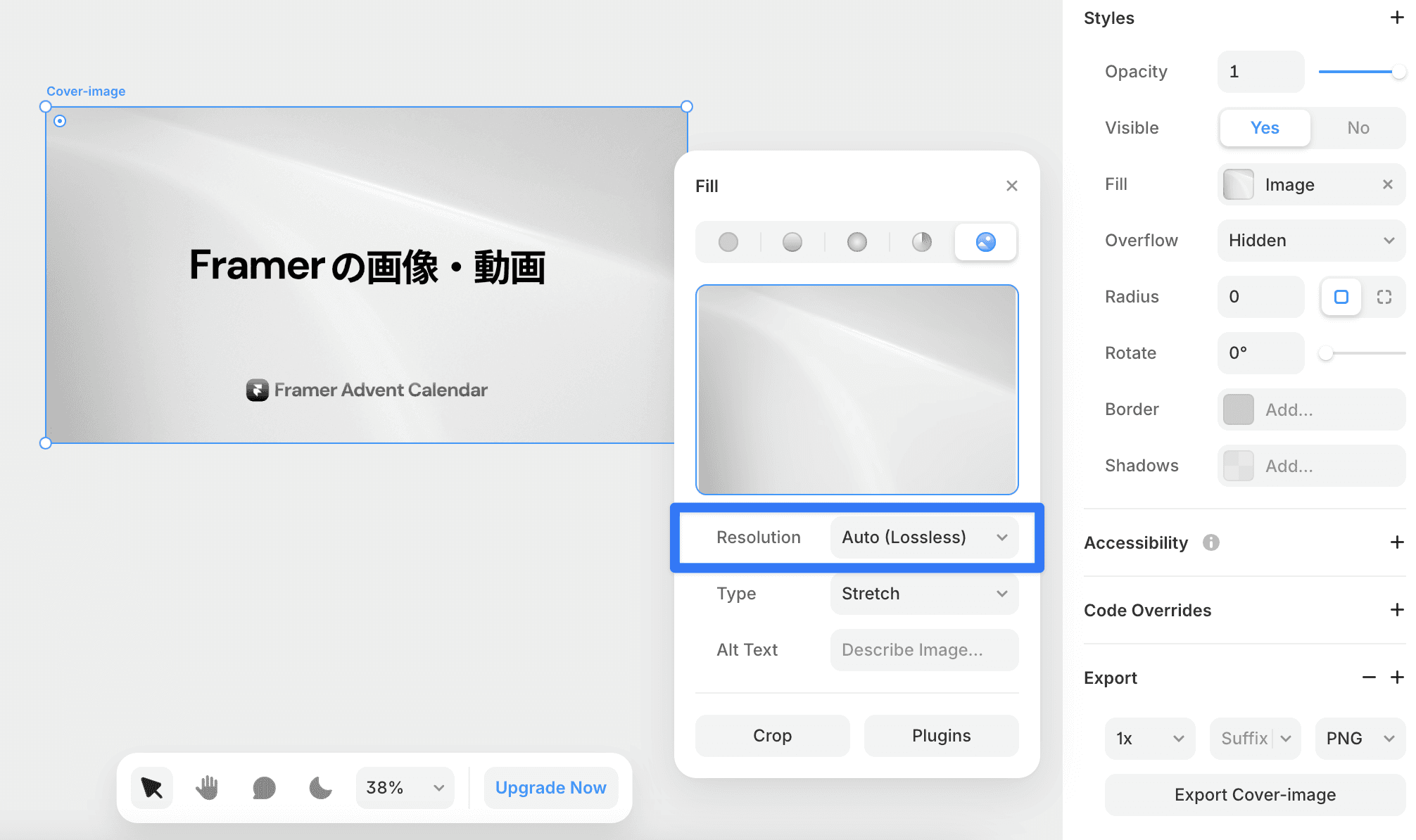
Settings When Using SVG Files
If there are many paths or layers, it may affect performance. It is recommended to upload the SVG file as an additional image fill in the properties panel "Fill" → "Image".
Automatic Video Optimization and Key Settings
Framer optimizes how videos load but does not modify the files themselves:
Efficient Loading
Loading starts only when close to the viewport. To prevent blank spaces during page loading, setting a poster image (thumbnail) is important.
Automatic Control
Videos used like GIFs (muted + loop playback) play only when visible
Automatically pauses when out of view
Special attention is needed for the following cases regarding settings.
When High-Quality Delivery is Required
Utilizing YouTube/Vimeo is recommended.
When Setting Video to Autoplay
Mute the audio. Autoplay with sound can cause stress for users and may be blocked by many browsers.
The official articles are here (Image Optimization・Video Optimization)
←