How to display rulers and layout guides

Hello. In this article, I will explain and introduce the useful features of rulers and guides in Framer for creating designs.
Framer provides tools called Ruler and Guide to precisely adjust the placement of designs. By utilizing these features, you can quickly create well-organized layouts.
How to Display and Shortcut Keys
By default, rulers and guides are not displayed. You can make them appear on the editor screen using shortcut keys. You can also display them from the action menu by pressing ⌘ + K.
Ruler
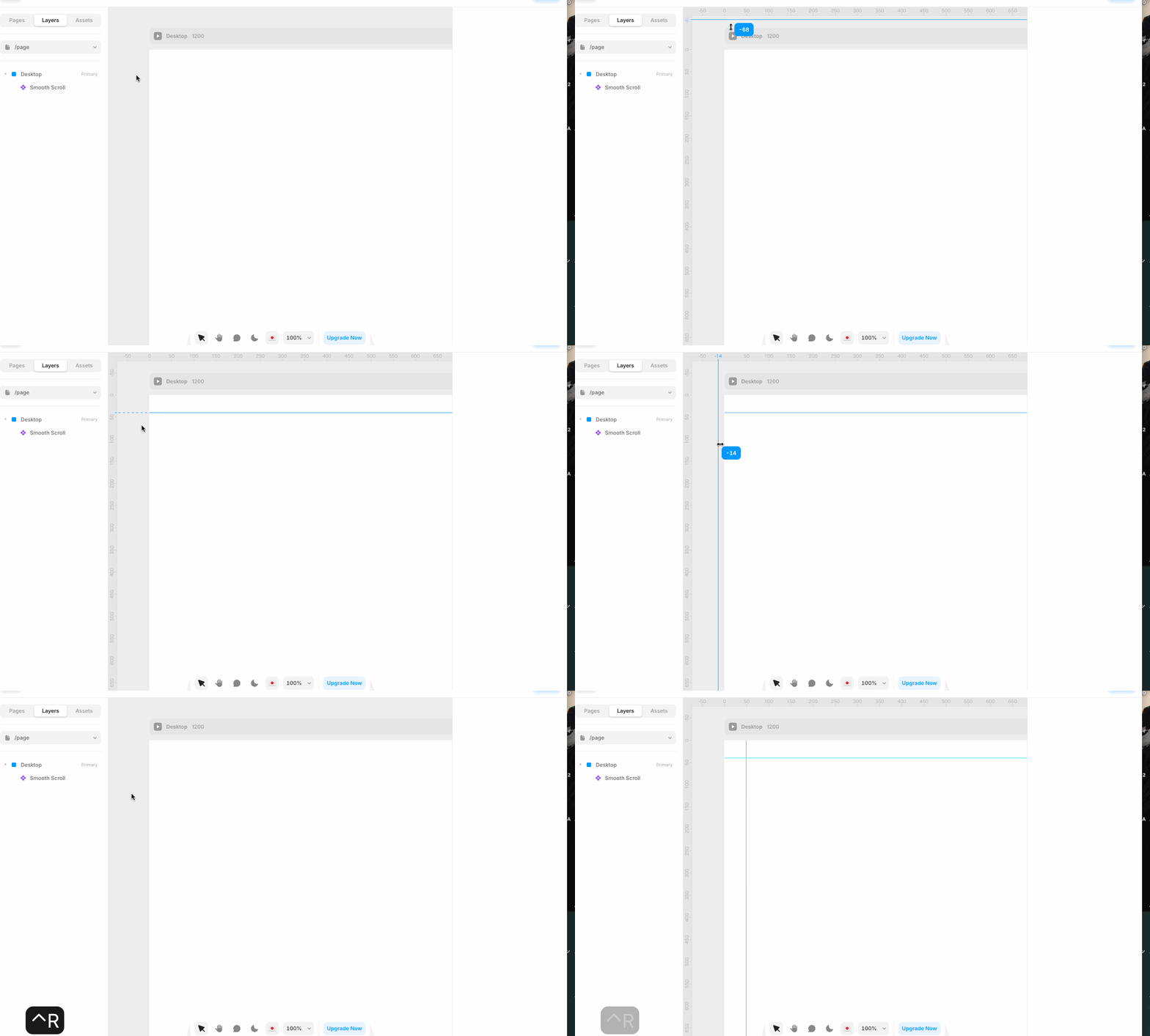
Pressing Ctrl + R will display rulers on the top and left edges of the canvas. (For Windows, it is Ctrl + Shift + R)
You can draw a ruler by hovering the cursor and dragging. To delete it, drag the drawn ruler back to the top or left edge, and it will disappear.
Guides
You can display guides by pressing Ctrl + G. When you select the breakpoint layer and look at the properties panel on the right side of the screen, you will see a section labeled Guides under Height. (For Windows, it is Alt + G)
Click here to set it to your preferred configuration. You can choose from two types: vertical or horizontal.
