

How to Import SVG in Framer
There are two ways to use SVG in Framer:
Import as an image
Import as an editable graphic
As an image
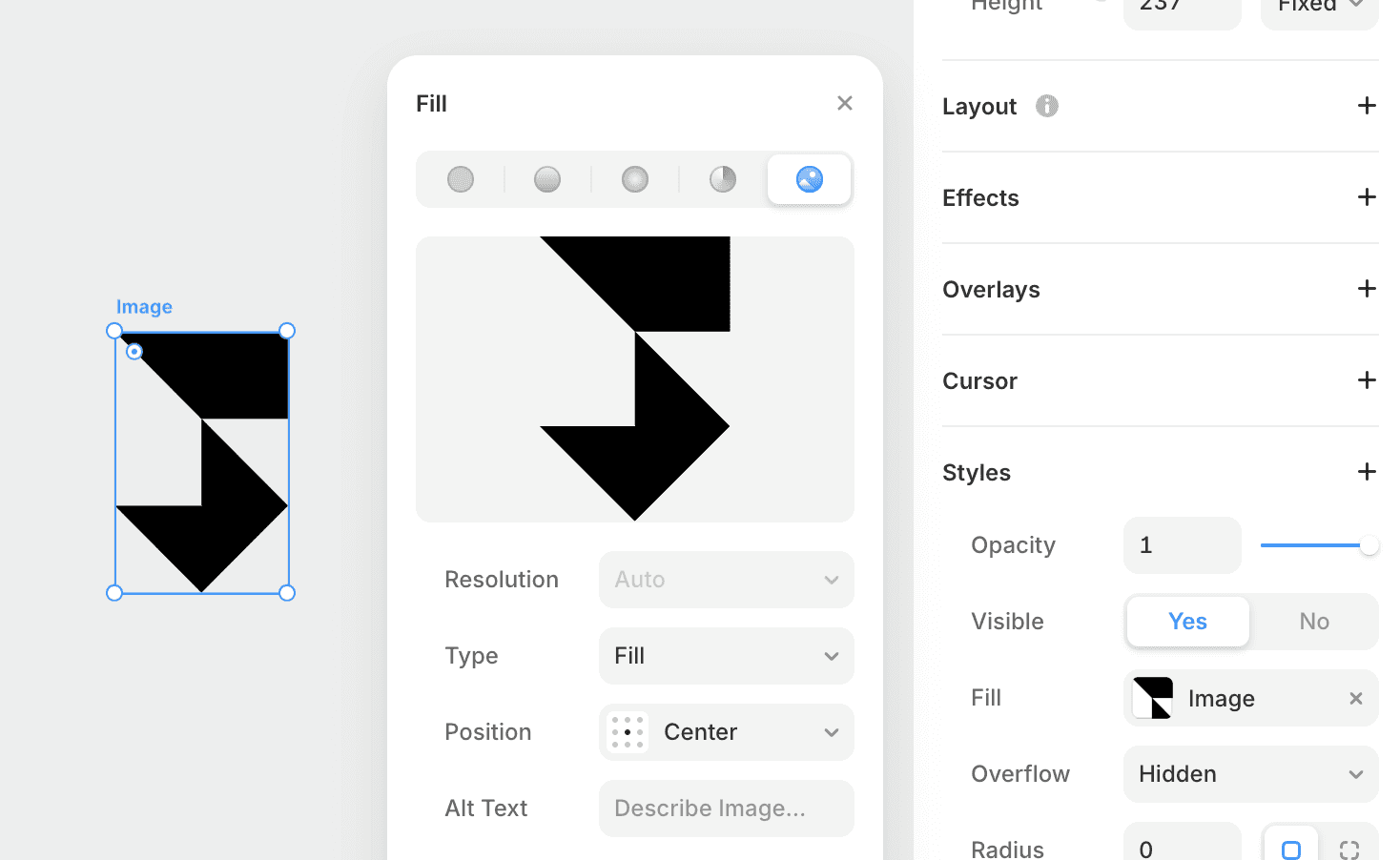
You can upload an SVG file as an image by going to the property panel and selecting "Fill" → "Image" → Add SVG file. This method is suitable, especially when there are many paths or layers, as it may affect performance.
As an editable graphic
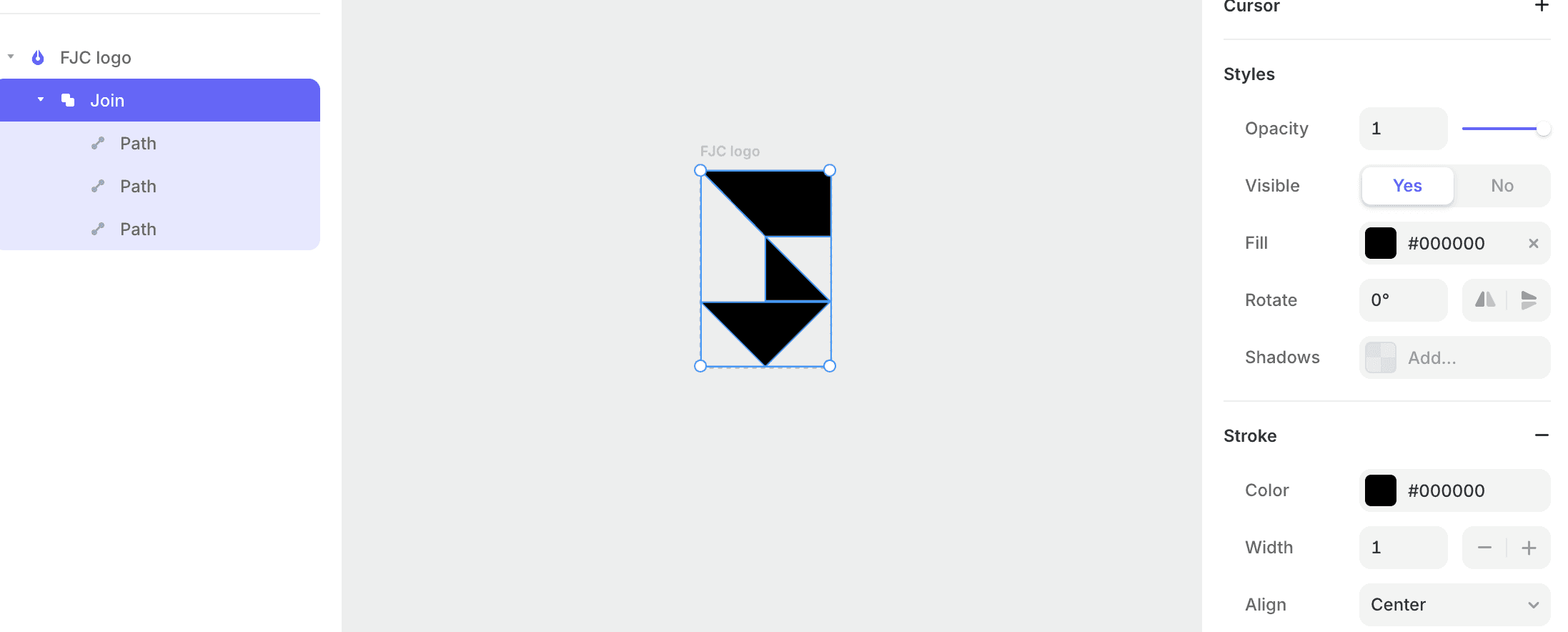
You can upload an SVG file by dragging and dropping it onto the canvas. In this case, it will be converted into an editable graphic that you can modify, such as colors and lines, by double-clicking.
It seems convenient to componentize SVG icons and create Variants with different colors!
Creating SVG in Framer
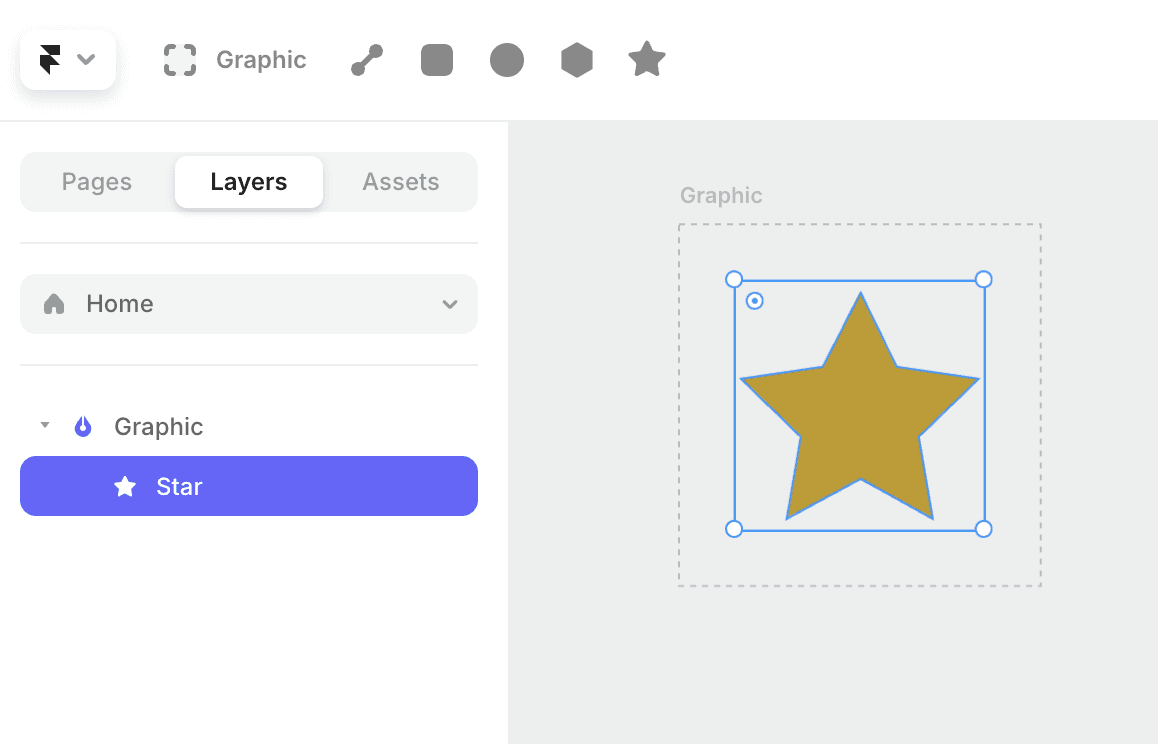
Enter Graphic mode with the shortcut key G, and you can create simple SVGs.
Bonus: SVG Animation
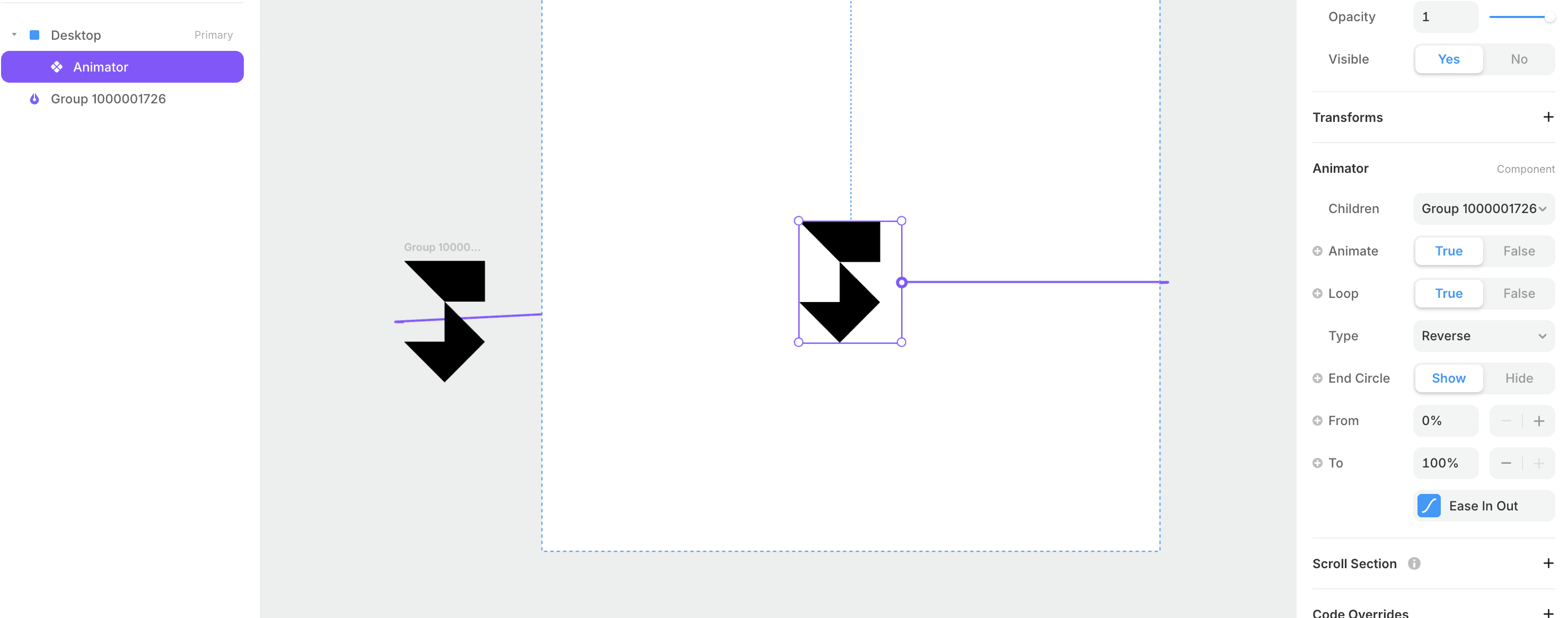
As a bonus, you can easily create SVG animations using components that can be copied from this page.

Copy components from the site and paste them onto Framer's canvas
Upload the SVG file by dragging and dropping it onto the canvas, and convert it to a graphic by double-clicking
Connect to Component 1
Edit values in the property panel
←