
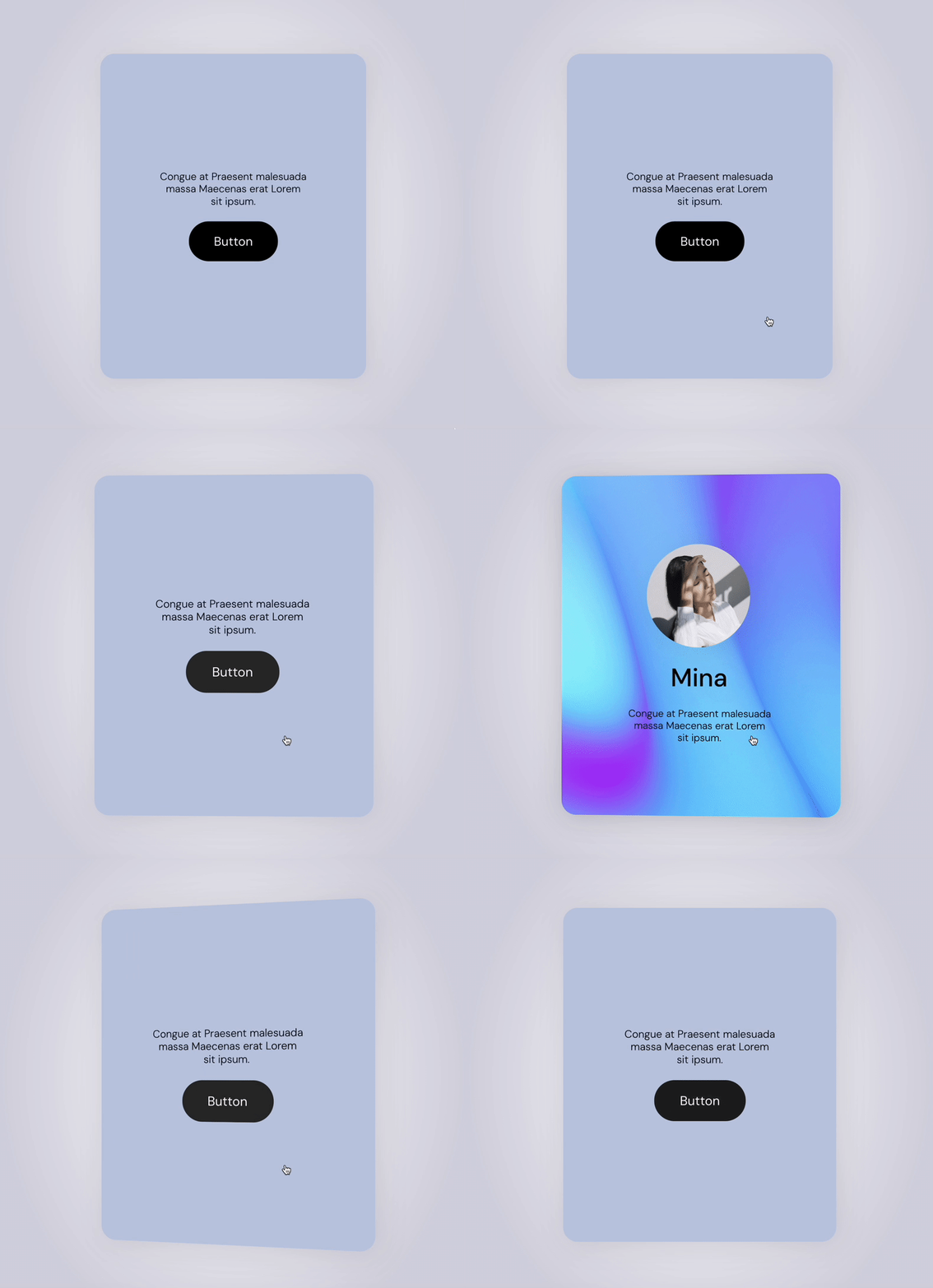
Transform of Framer that can also do 3D representation
Even seemingly complex elements like this can be created using no-code with Transform.
The actual preview is here.
Settings and functionalities of Transform
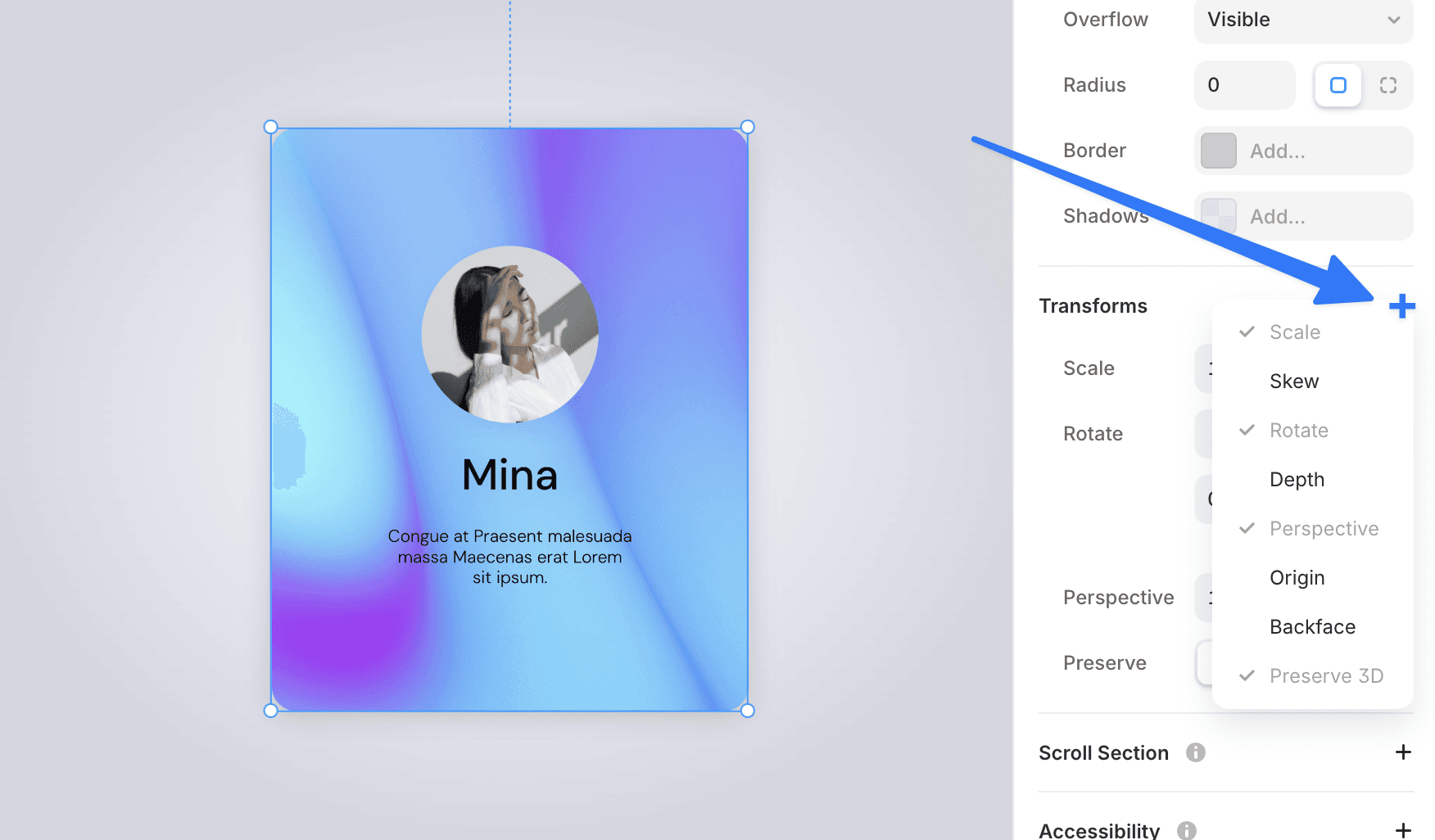
Select the element, press + to bring out the necessary elements, and configure in the right column.
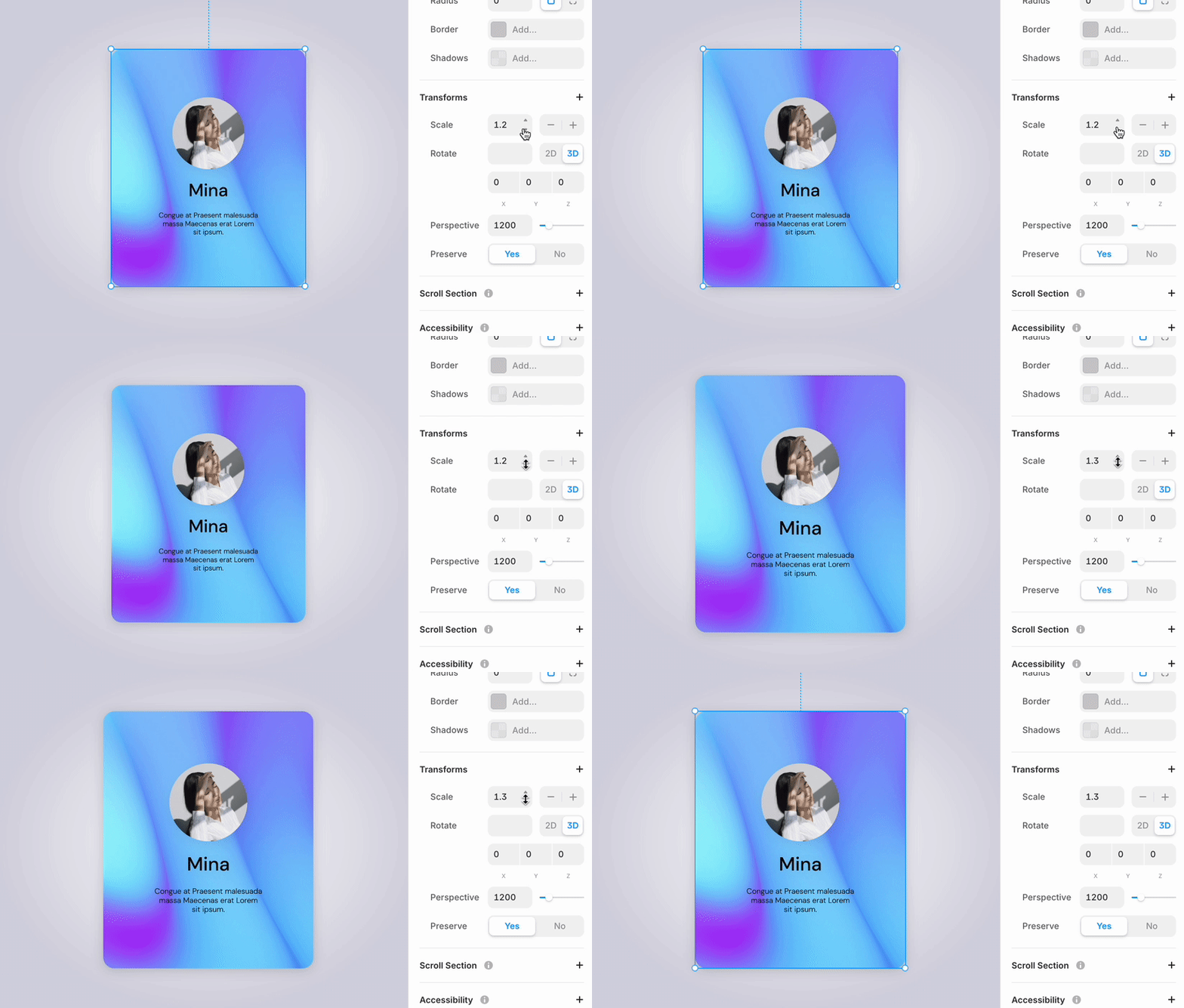
Scale:
One of the simplest transformations is "Scale". It is a basic function that allows you to change the size of the element.
Skew:
Skew is a function that skews the element. You can set the skew angles on the X-axis and Y-axis, enabling more dynamic expressions.
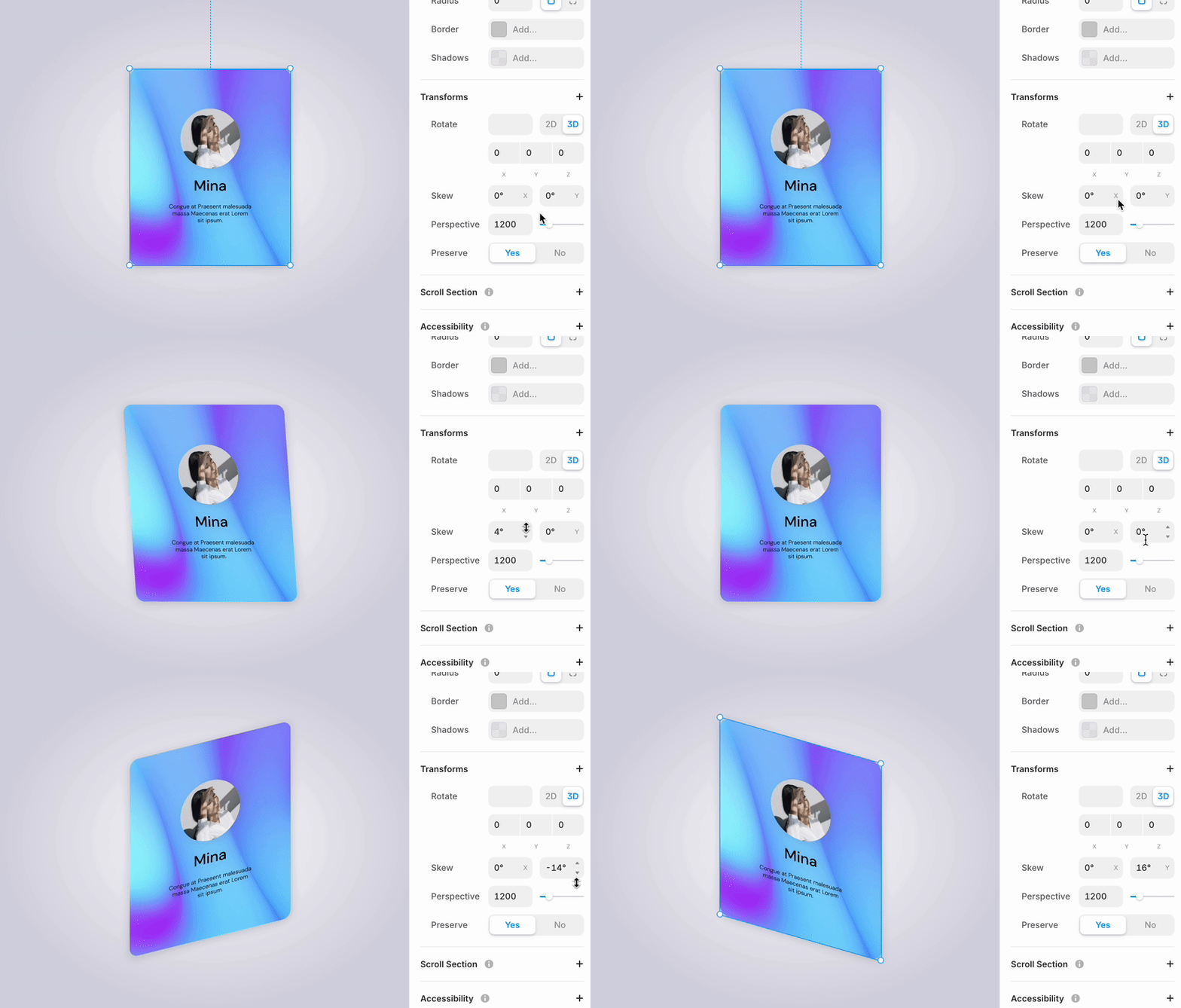
Rotate
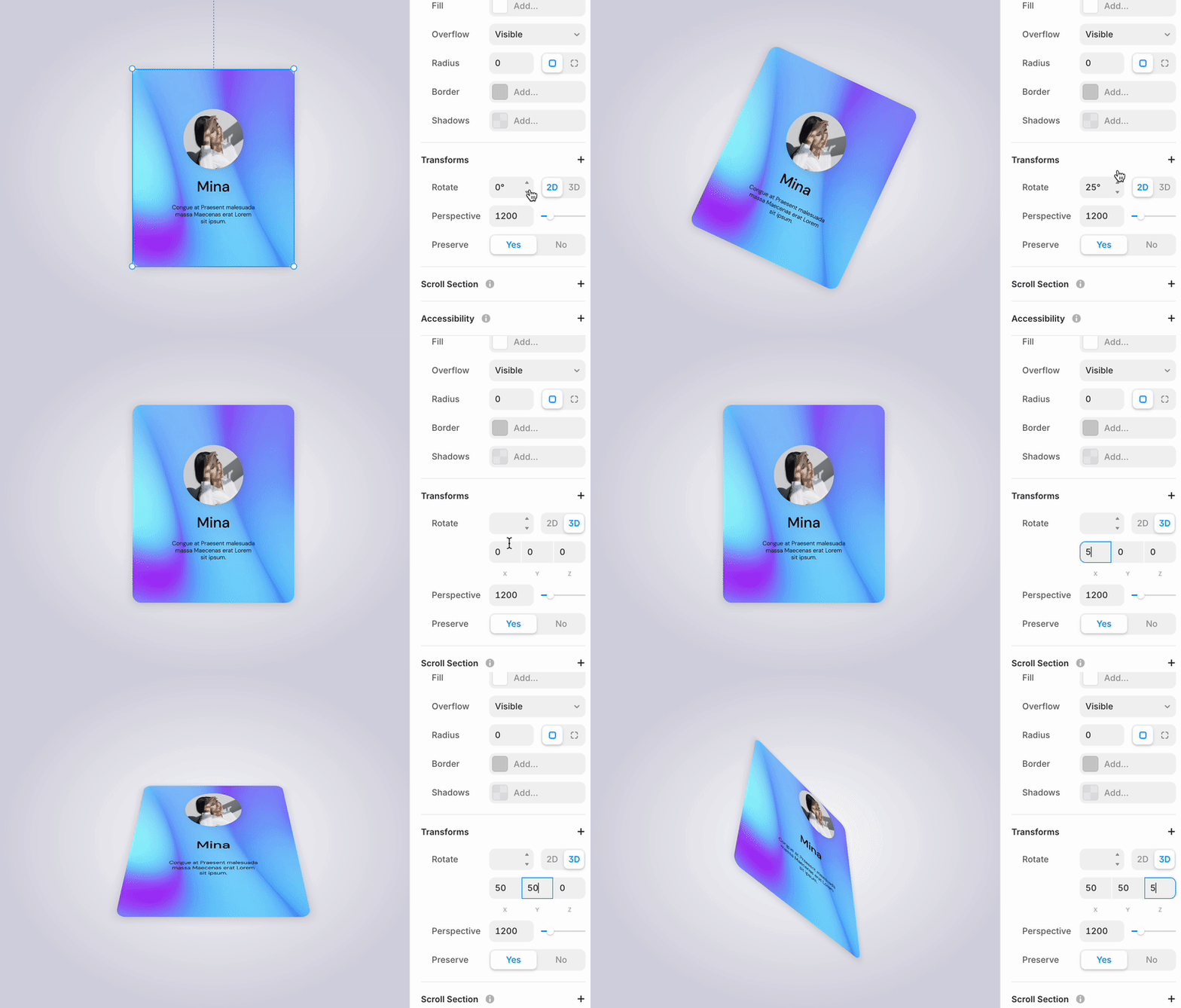
There are two types of rotation modes:
2D rotation: Rotation on a traditional plane
3D rotation: Solid rotation based on the X, Y, and Z axes
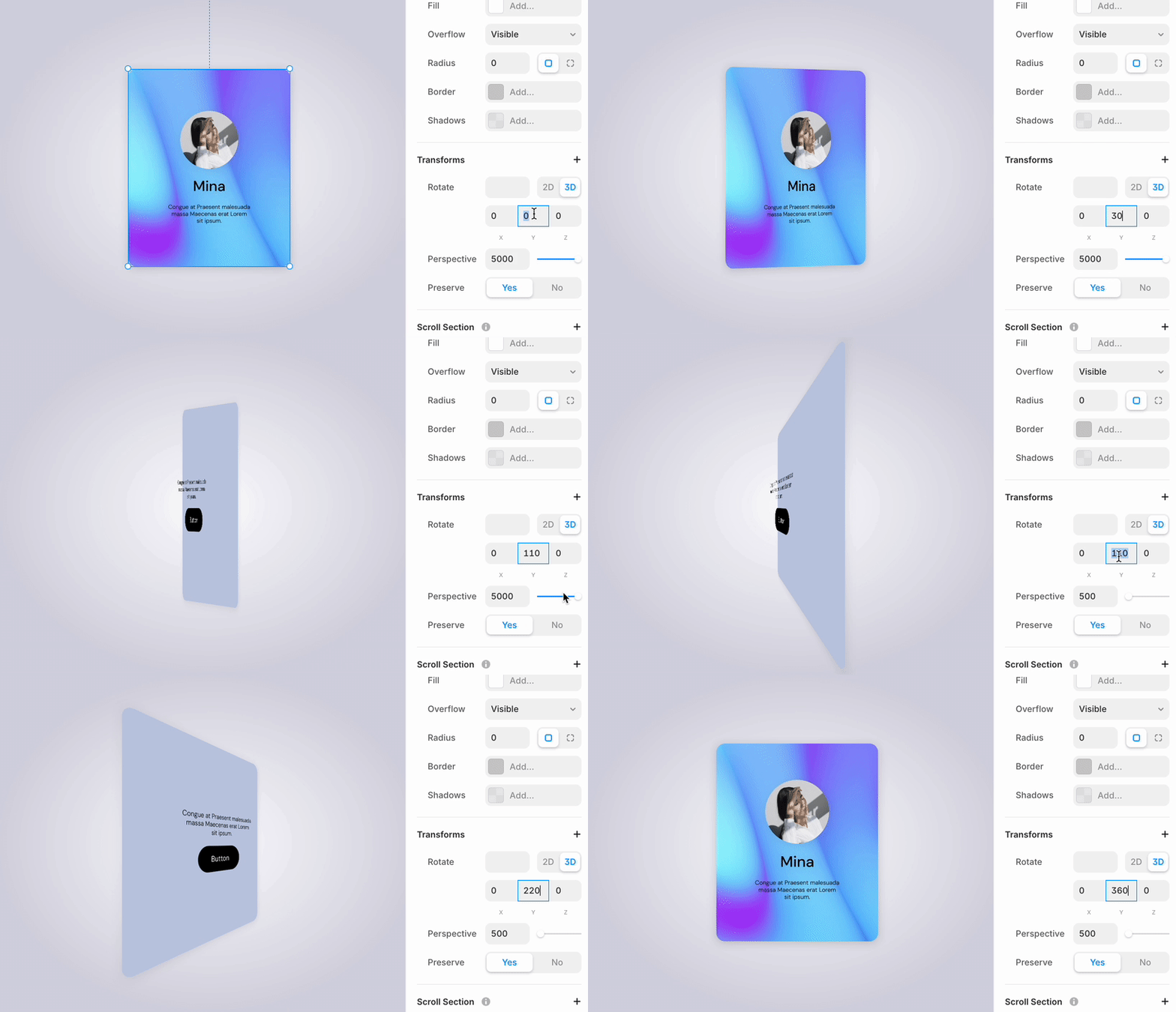
Perspective
When performing 3D rotation, by appropriately setting the Perspective, you can express a more natural three-dimensional feel.
Small value (e.g., 500): Stronger 3D effect
Large value (e.g., 5000): Softer 3D effect
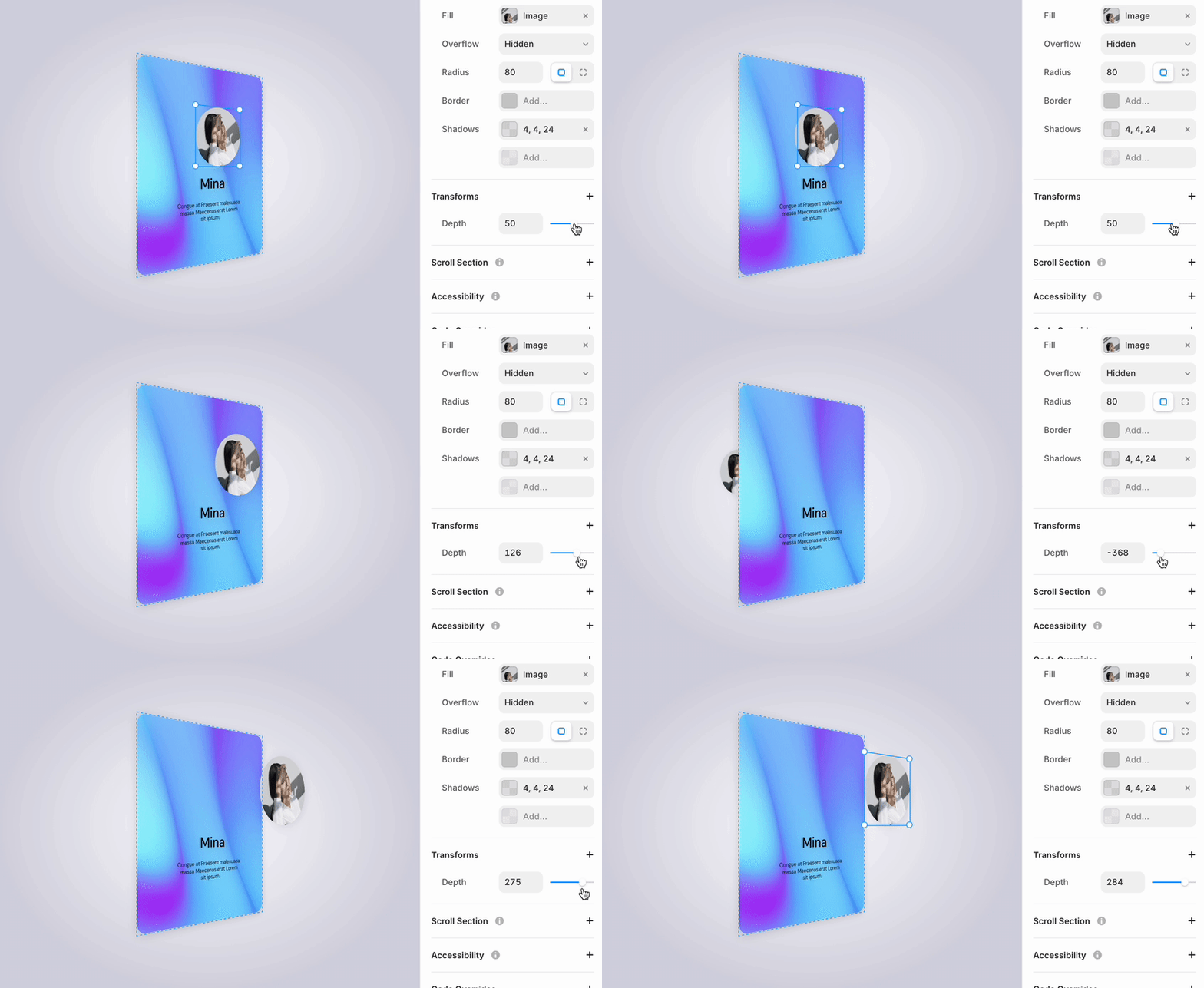
Depth
Depth is a function that gives the element depth in the Z-axis direction. This allows the element to express movements closer to or further away from the screen. However, to see this effect, the Perspective setting is necessary.
Additionally, when performing 3D transformations with nested structure elements like this example, the application of Preserve 3D is needed as described later.
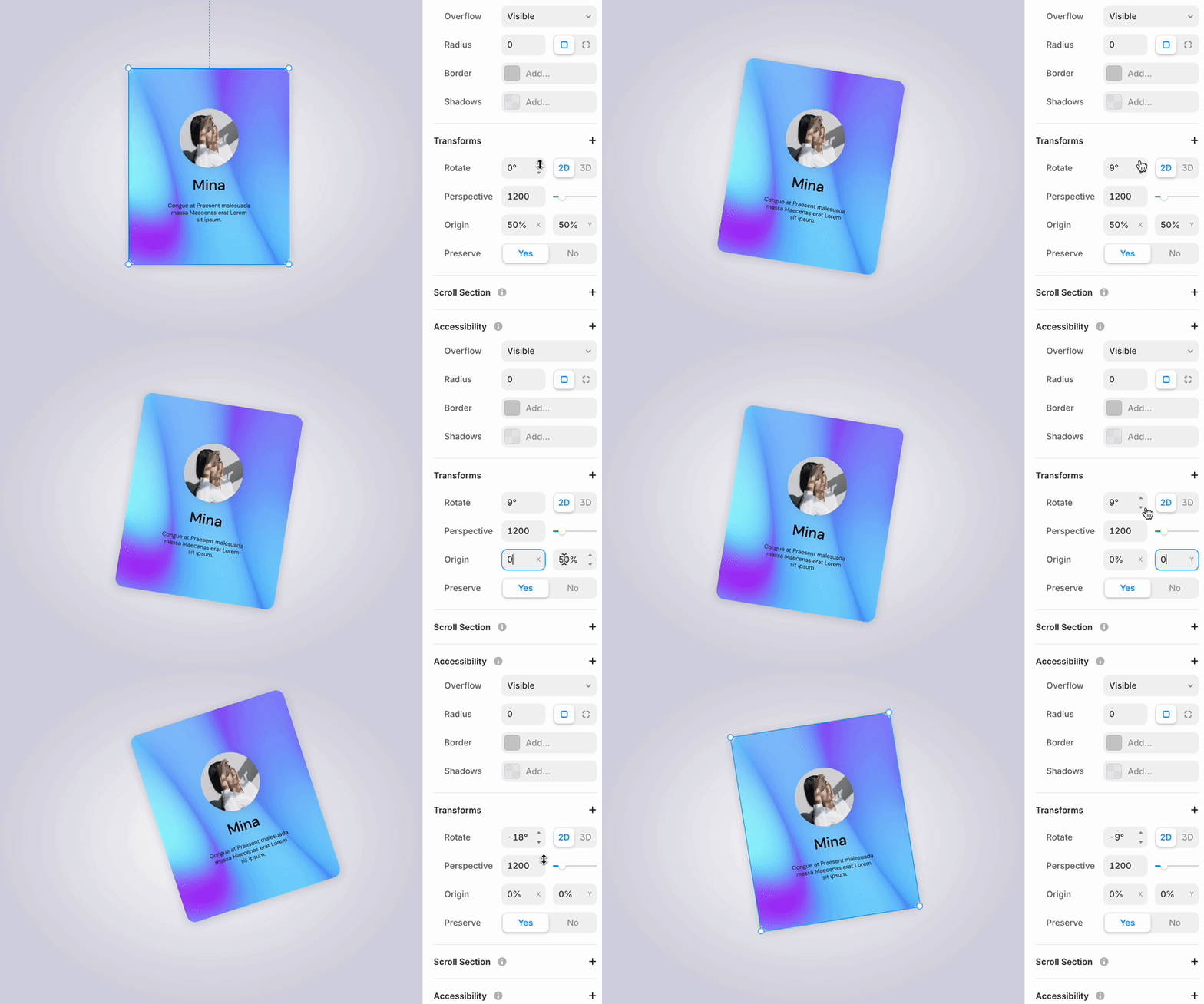
Origin (Transformation reference point)
Origin is a function that sets the point of reference for the transformation. By default, it is set at the center point (50%, 50%), for example:
If you want to set the top-left as the reference: X=0%, Y=0%
If you want to set the bottom-right as the reference: X=100%, Y=100%
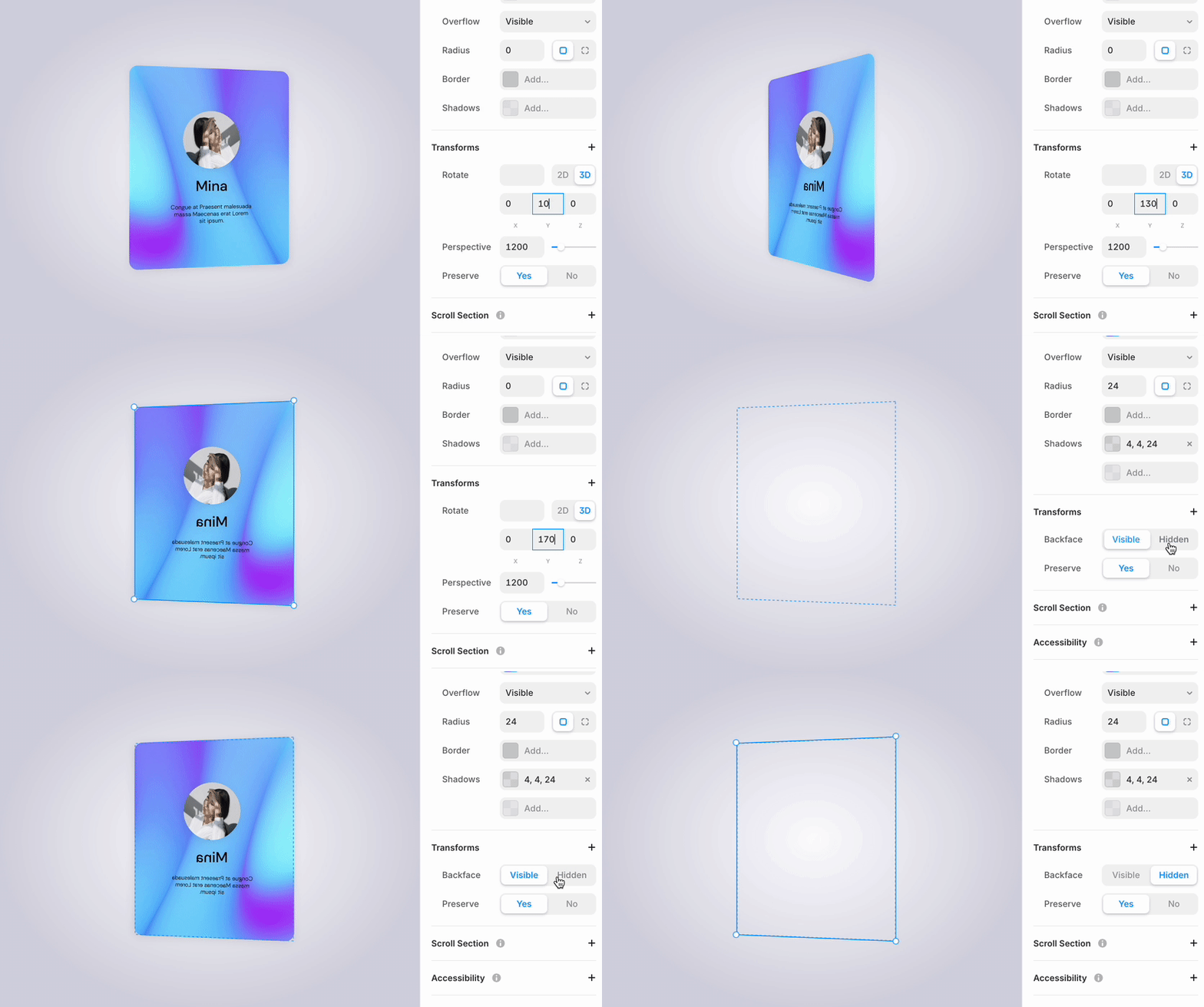
Back Face (Show/Hide back side)
You can control the visibility of the back side when the element is rotated. This setting is particularly important when creating animations like card flipping.
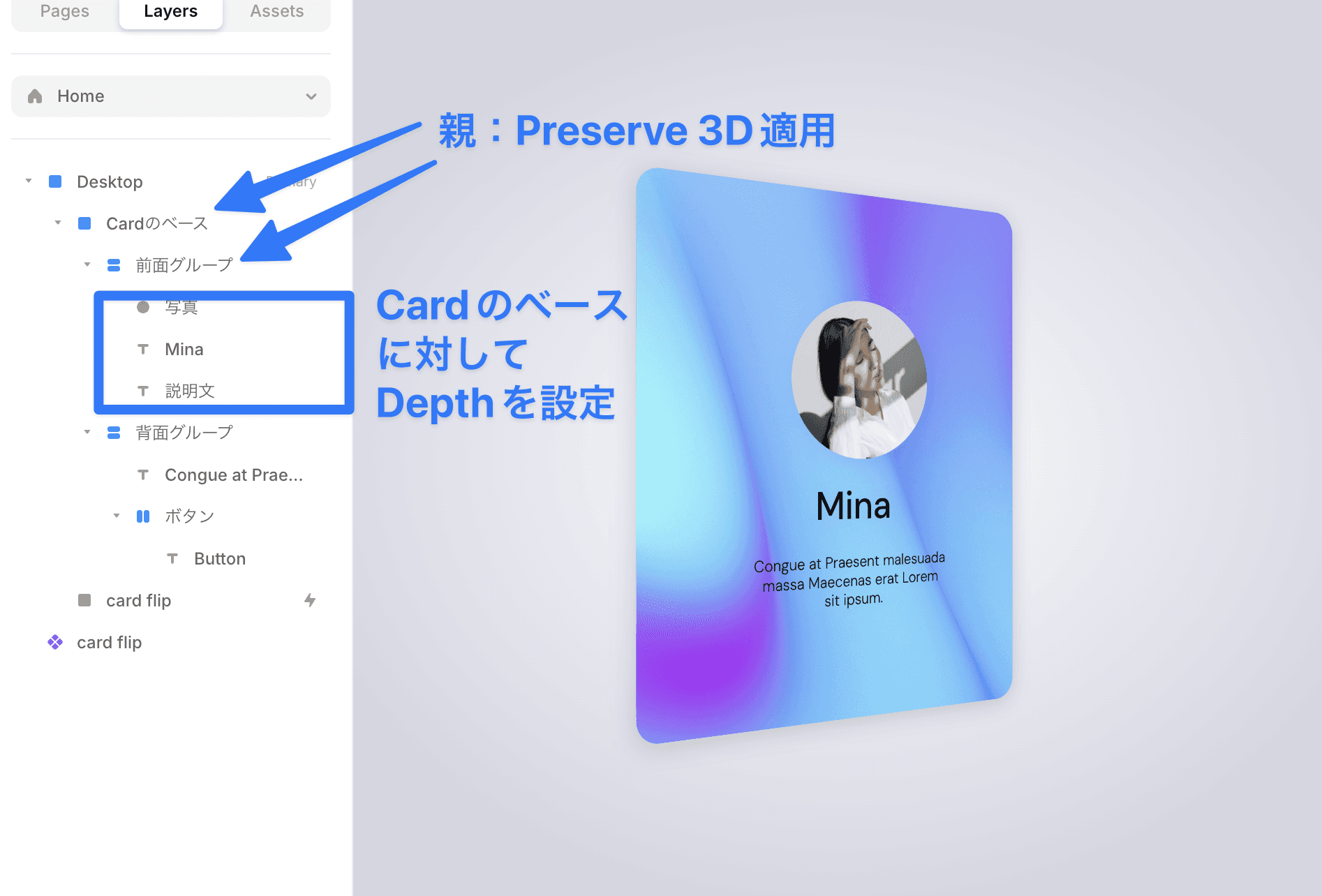
Preserve 3D
This is an important setting when performing 3D transformations with nested structure elements. By enabling the Preserve 3D of the parent element, the child elements will also transform within the same 3D space. This enables the creation of more complex 3D animations.
Reference for 3D cards
The Remix link for the cards used in this explanation is here.
I think checking the structure in the file will make the image easier to understand.
←