

Animations You Can Create with Simple Settings
With Framer, you can set up animations and effects without writing code, using only simple settings. There are many options available, such as scrolling, clicking, and looping.
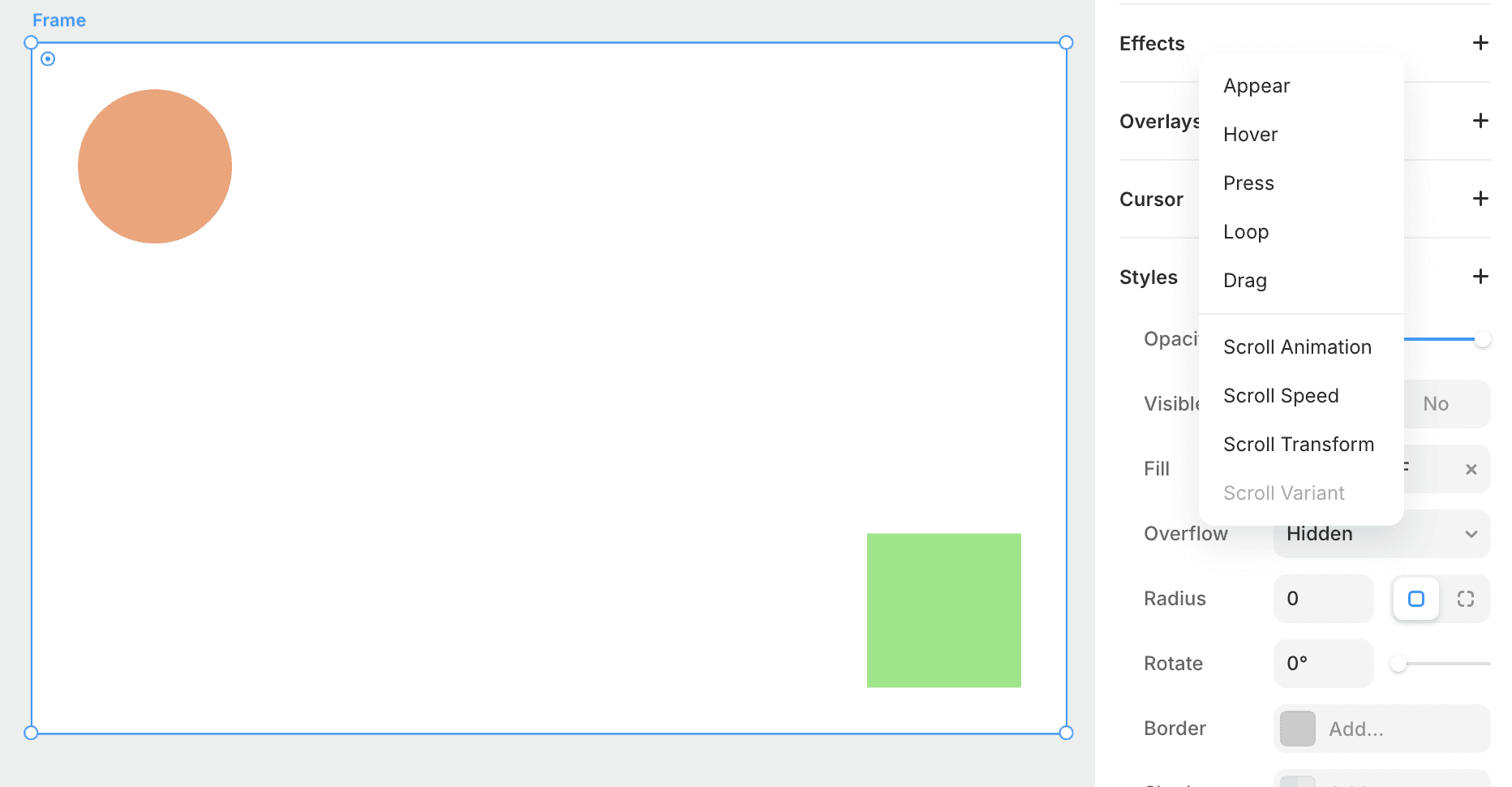
A Rich Variety of Configurable Items
Animation settings can be configured from the Effects panel on the right. The items you can configure are as follows.
Appear → Automatically activates when the element appears on the screen.
Hover → Activates when the mouse cursor hovers over it.
Press → Activates while clicked.
Loop → Continuously repeats the animation.
Drag → You can move the element by clicking and dragging.
Scroll Animation → Almost the same as Appear. You can specify conditions for when the element activates based on its position in the viewport (top, middle, bottom).
Scroll Speed → Used for parallax effects. If you specify 90%, it will slow down the scrolling speed to 10% less than usual before reaching the top of the screen. If you set it to 110%, it will speed up.
Scroll Transform → Animates according to scrolling. If you stop scrolling during the animation, it will also stop midway.
Scroll Variants → You can switch between multiple variants by scrolling. You can create animations where images change based on scrolling.
Implementation Examples (Video)
Here are some examples showing how to set up animations.
Animation that fades in from below

Animation where elements move left and right following the scroll

Transitions
In Framer, settings for easing and spring are available to make the animation movements appear natural and smooth.
Easing
Easing is a transition type that determines how the speed of the animation changes over time (acceleration and deceleration). It is important for creating natural movement and sensation.
ease: Basic easing with natural acceleration and deceleration.
ease-in: Starts slowly and then accelerates.
ease-out: Starts fast and slows down toward the end.
ease-in-out: Starts and ends slowly while the middle part is fast.
linear: Moves at a constant speed (no easing).
Spring
Spring is a transition that simulates spring-like motion, allowing for rebounds and natural movement. Springs can calculate the animation using physical characteristics, allowing for realistic movement depending on the settings.
damping:
Determines the rate of decay of movement. The higher the value, the less rebound of the spring (the movement stops quickly).
Example:
damping: 20→ Stops quickly with no rebound.Example:
damping: 5→ Movement with noticeable spring-like rebound.
stiffness:
Determines the hardness of the spring. The higher the value, the faster the movement; the lower the value, the softer the motion.
Example:
stiffness: 100→ Hard spring movement.Example:
stiffness: 10→ Soft and slow movement.
mass:
Simulates the weight of the moving object. The heavier the mass, the slower the movement.
Example:
mass: 1→ Light.Example:
mass: 5→ Heavy.

←