
Manage Content Easily with Framer CMS
A CMS is a system for managing and updating the content of a website. It is used, for example, to increase, decrease, or change pages or lists with the same design, such as blog posts, update information, job pages, etc.
With Framer's CMS, you can update content easily without any specialized knowledge or design expertise, allowing marketing teams and content writers to update it effortlessly.
Additionally, by utilizing the Variants of Components, different design variations can be easily displayed based on the status of the content.
Basic Concepts and Settings of CMS
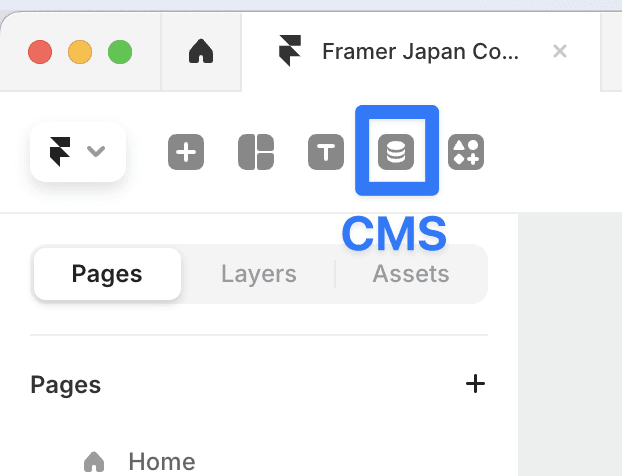
You can access it by clicking the CMS button in the top left toolbar.
Collections and Items
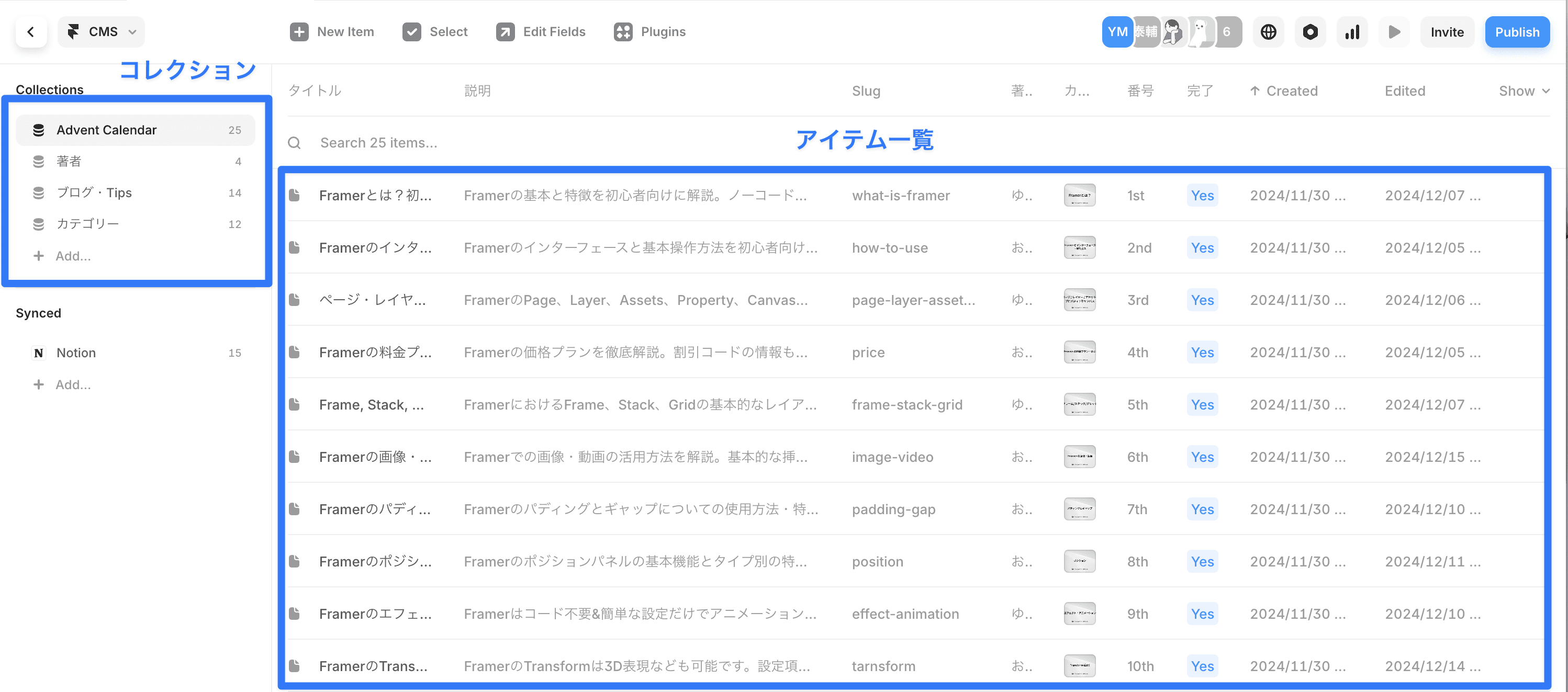
A collection is a mechanism for grouping related content. For example, in the case of a blog:
A "Blog" collection that summarizes multiple articles
A "Authors" collection that summarizes author information
A "Categories" collection that summarizes information related to article categories
You can create such collections and link each to compose information for the blog page.
An item refers to the individual content within each collection. (e.g., one blog post)
Fields
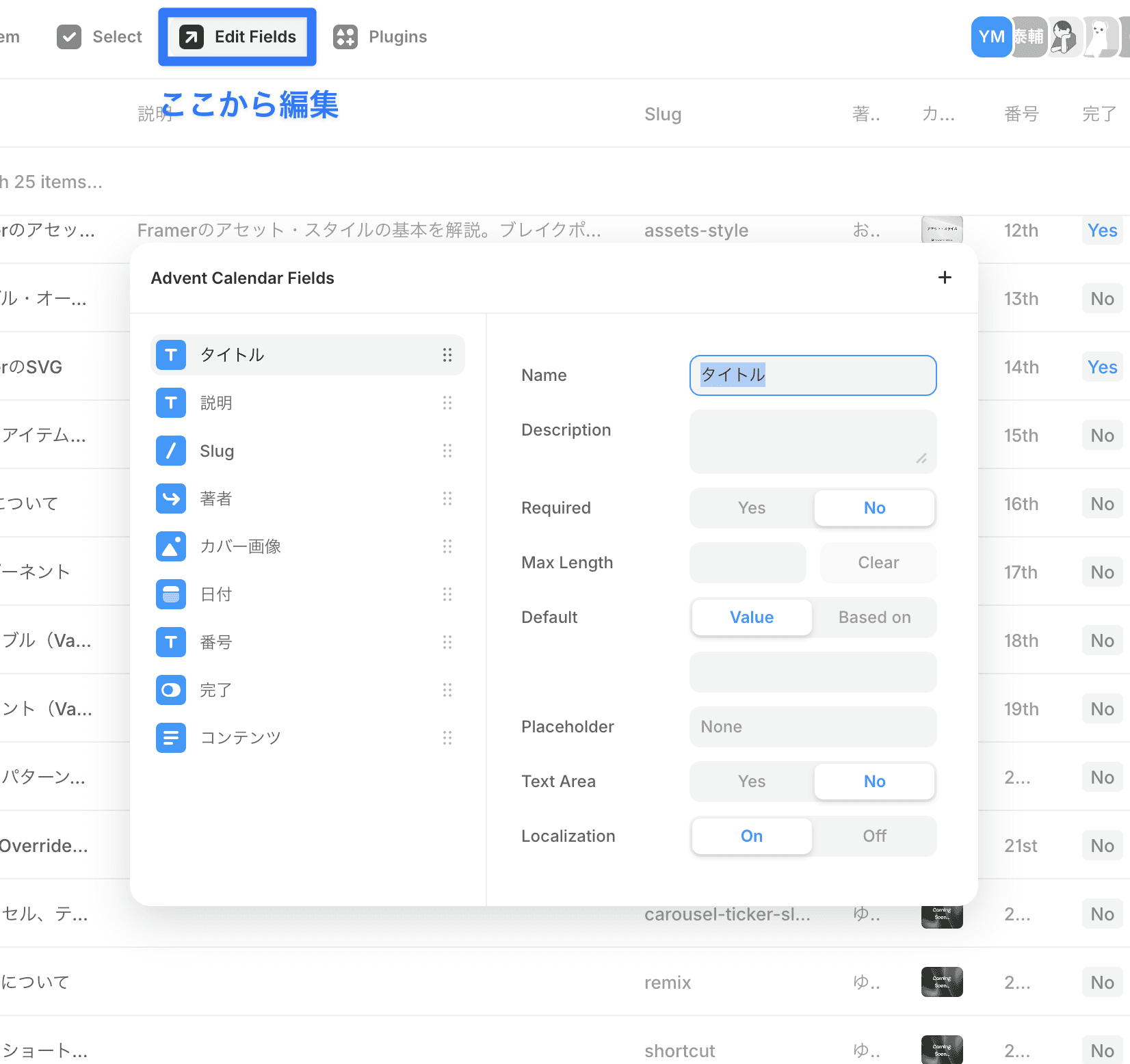
The field is where you decide what information to hold for each item within a collection. (such as title, date, body, etc.) You can edit this from the Edit Fields option in the top menu.
Details about the elements of the field
Plain Text: Simple text input for headings and titles
Formatted Text: Content like the body of an article that needs to be edited with a rich text editor
Date: Date information such as publication date or event schedule
Link: Links to external URLs or internal pages
Image: Images such as thumbnails, banners, galleries, etc.
Color: Used to specify the color of elements
Toggle: Settings for public/private status or flags for featured articles, etc., with Yes/No values
Number: Numerical data entry for prices, stock counts, order, etc.
Option: Setting a single value selected from pre-defined options like categories or statuses
File: Allows uploading files with specified extensions
Reference: Used to reference items from other collections (e.g., author information of an article)
Multi-Reference: Used when multiple items need to be referenced (e.g., tagging articles)
Divider: Used to group related fields together to enhance visibility
How to Create Parts and Pages Using CMS
Collection List
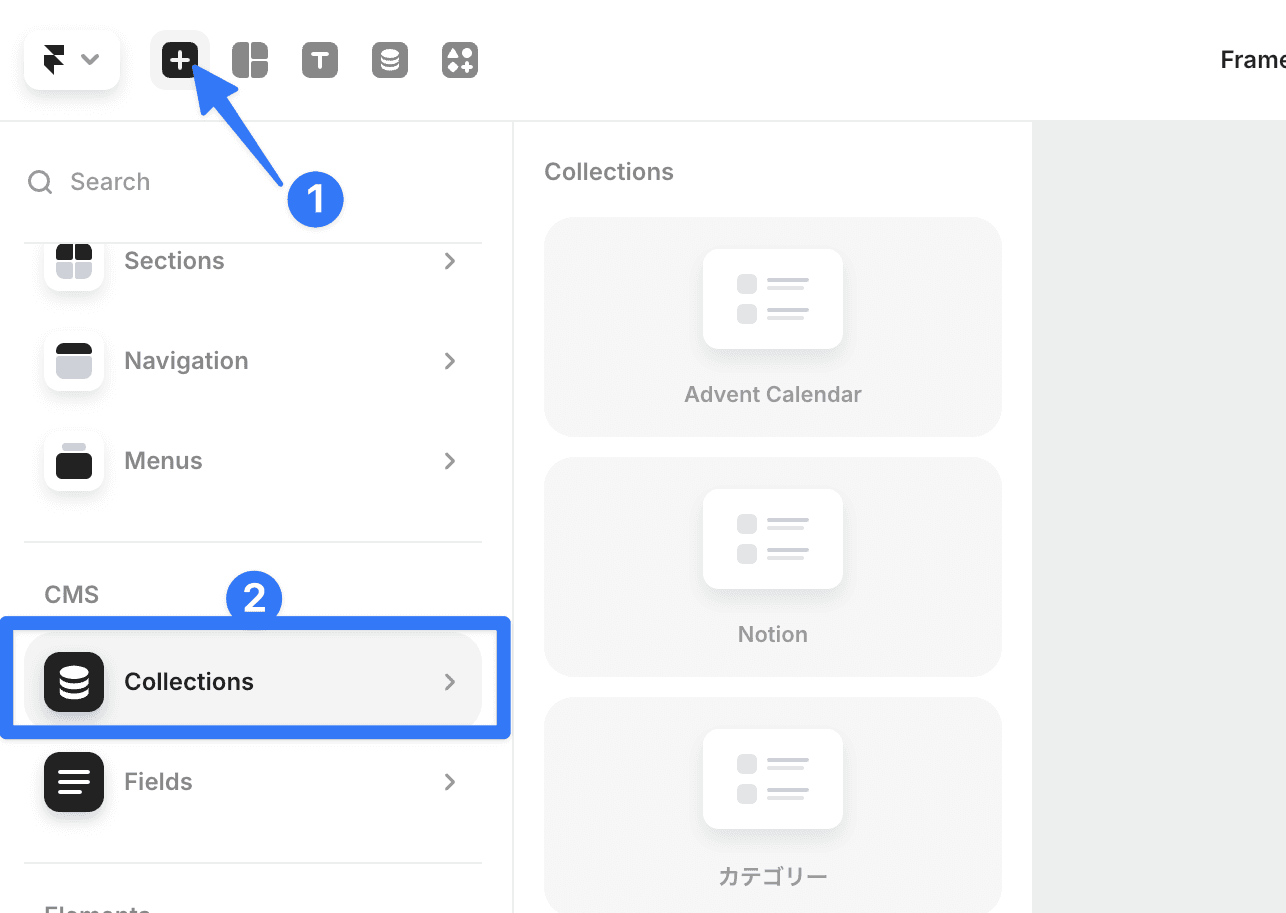
How to insert:
A collection list is a feature for displaying a list of CMS content on any page. You can select the desired collection from Insert > CMS > Collections and insert it. It is often used for blog article lists.
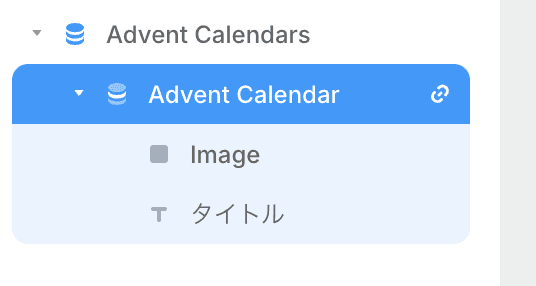
Design Adjustment and Content Application:
The layer will display the CMS icon as shown here. An element representing one item is displayed, and editing it affects all items.
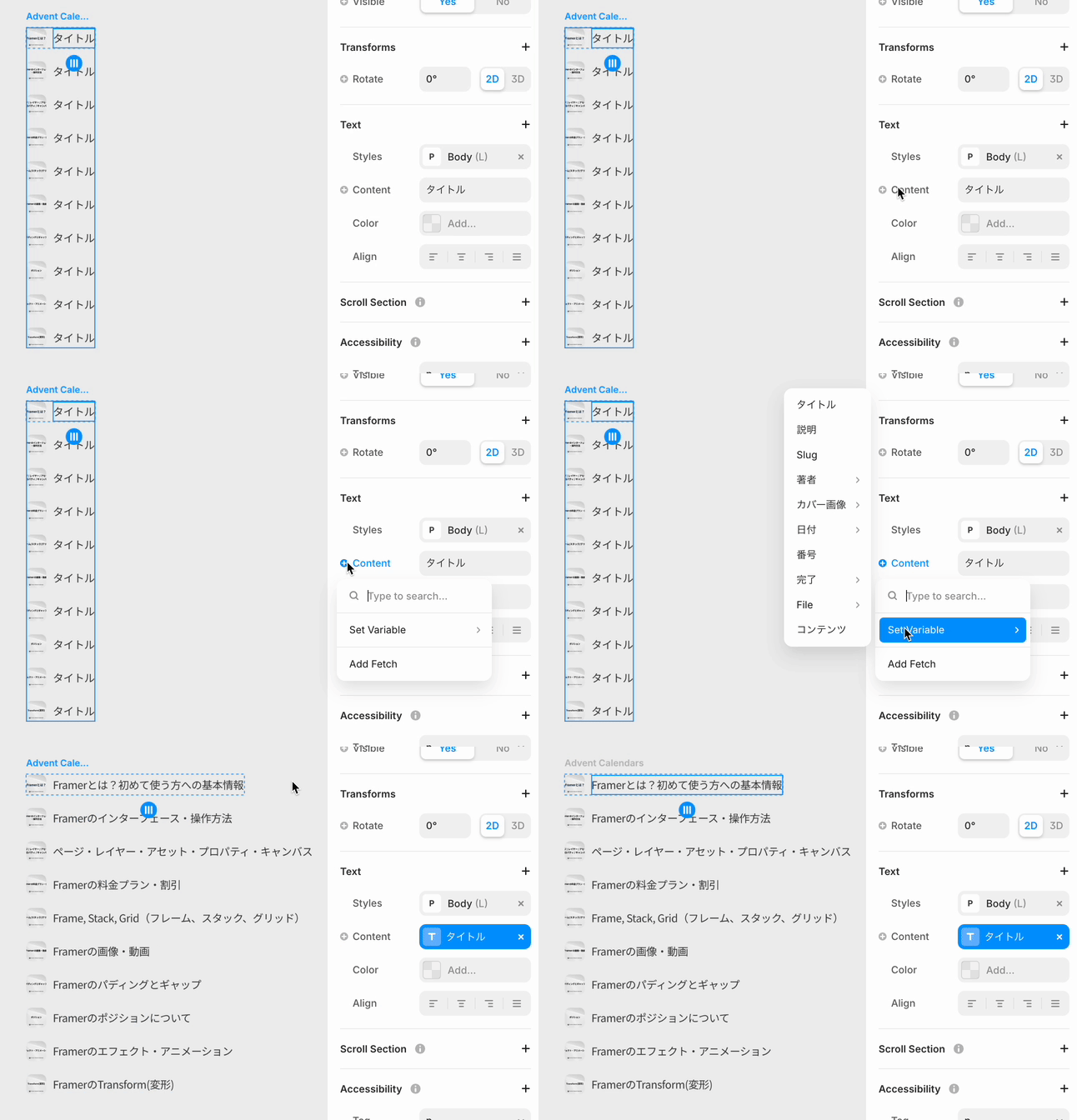
To apply CMS content to the element, press the + mark and select the relevant field.
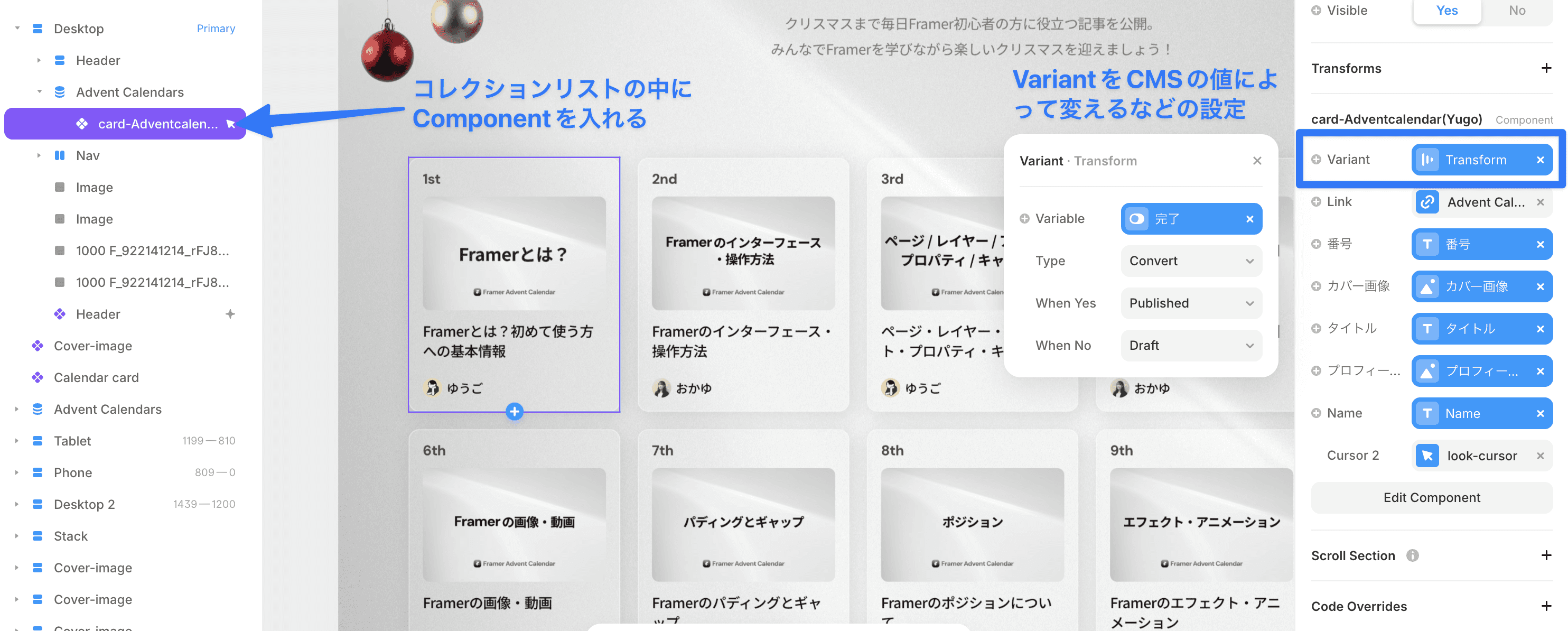
Moreover, you can easily create design variations based on the CMS state. For instance, if the value indicating whether the article is complete is No, you can make the card semi-transparent and unclickable.
Place a Component inside the collection list and make adjustments in the property panel to change the Variant based on CMS values.
CMS Page
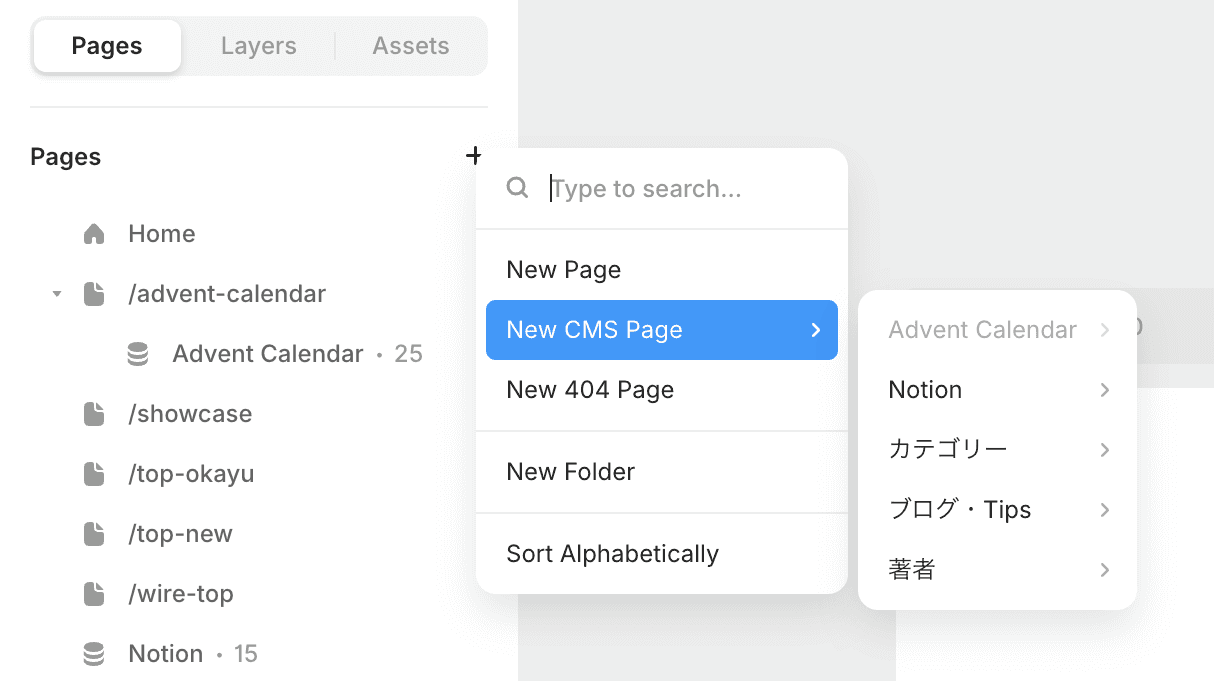
How to insert:
A CMS page is a feature that creates a page for all items within a collection. You can create it by selecting a collection from Page > + > New CMS Pages. It is often used for detailed blog article pages.
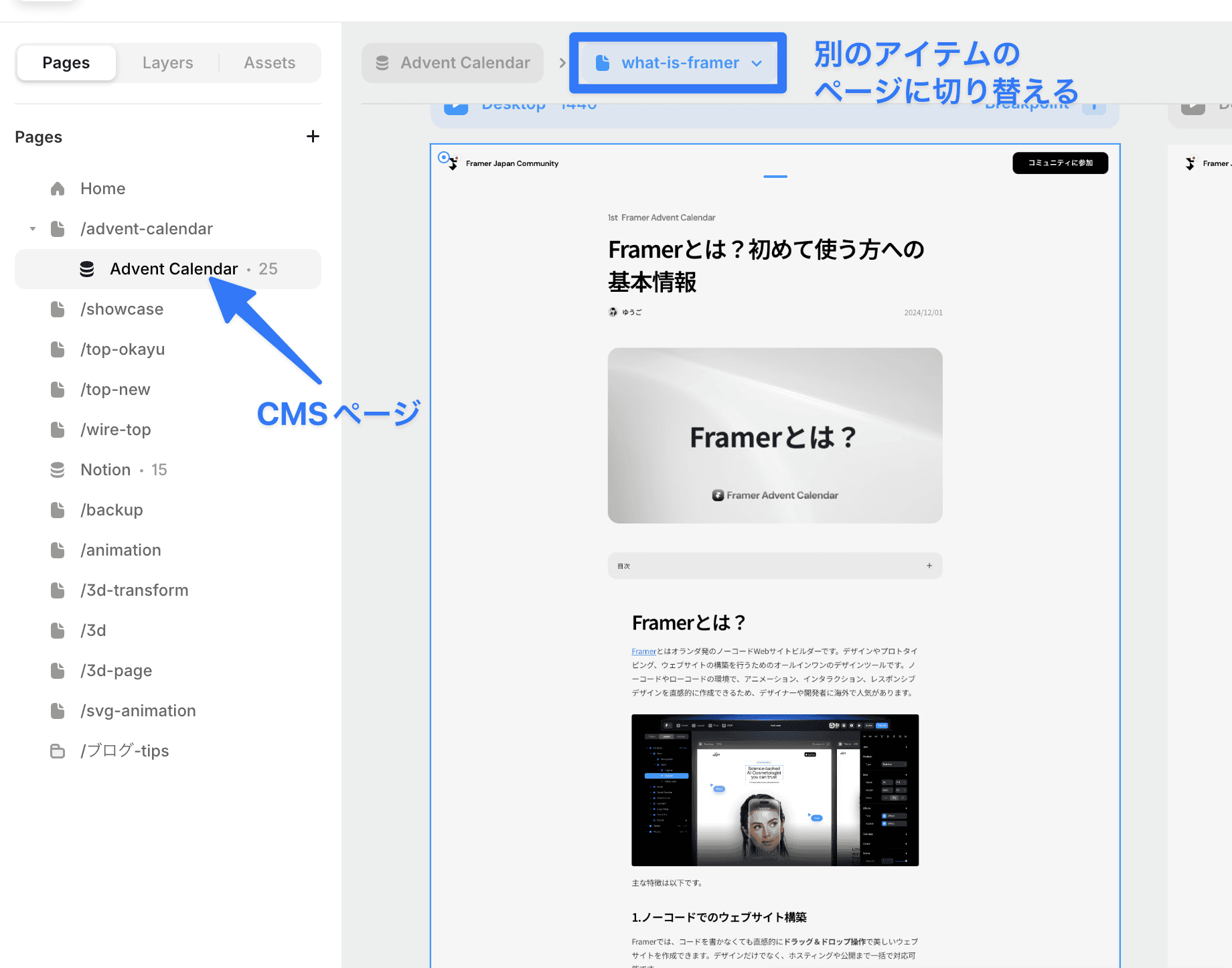
Design Adjustment and Content Application:
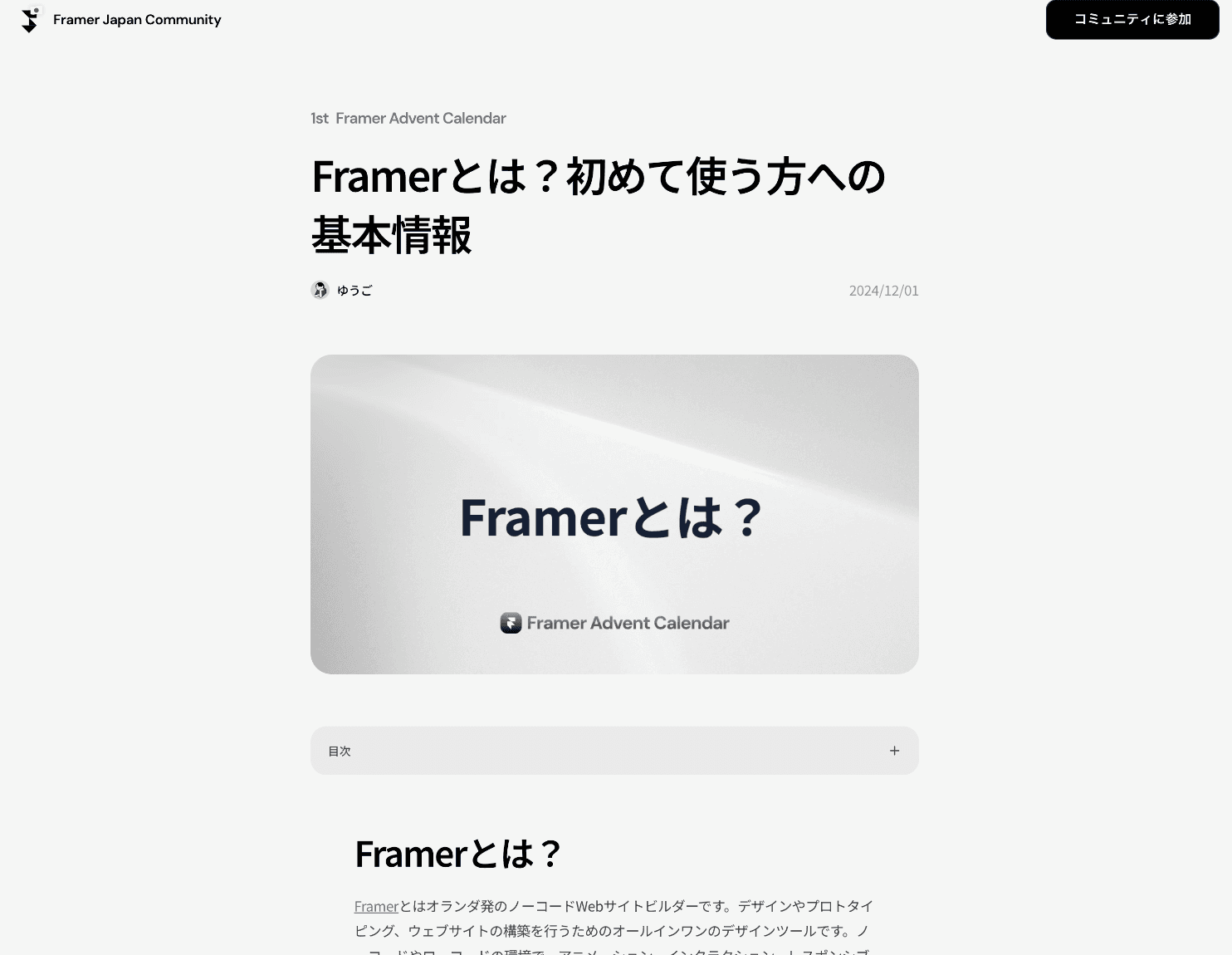
The page will display the CMS icon this way. A page representing one item will be displayed, and editing it affects all item pages. You can switch to other item pages from the top.
The method for applying content is the same as with the collection list. Press the + mark in properties and select the relevant field.
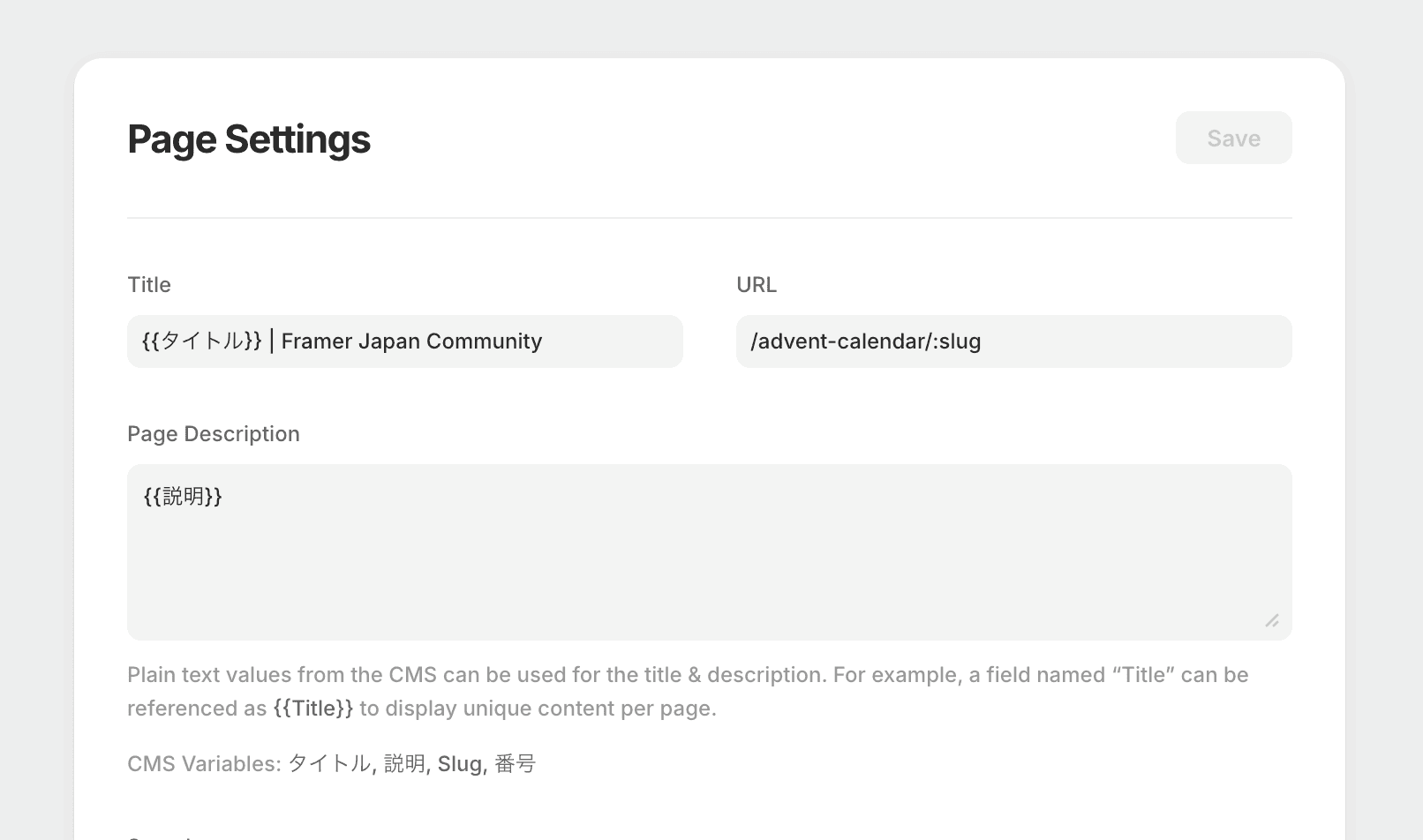
Page Settings:
Page titles, URLs, descriptions, and thumbnail images can also apply content.
Text that uses content is specified with {{ }} for the field names.
←